

1. Why Calling at the Right Time Matters
Sales teams live and die by timing. Even the best script or the most motivated SDR can’t overcome the simple fact that:
- People don’t answer the phone early in the morning
- Lunch hours vary by region
- After‑hours calls feel intrusive
- Connect rates drop dramatically outside business hours
Research consistently shows that calling at the right local time can increase connect rates by 30–50%. But Salesforce doesn’t provide a native way to see a Lead’s or Contact’s local time — which means reps often guess, Google, or simply call blindly.
This wastes time, reduces productivity, and leads to poor customer experiences.
Fortunately, with the Local Time app, admins can give reps a simple, reliable way to prioritize calls based on the customer’s actual local time.
2. How to Add Local Time to List Views
Once the Local Time app is installed, you can make it visible in list views — which is where reps spend most of their day.
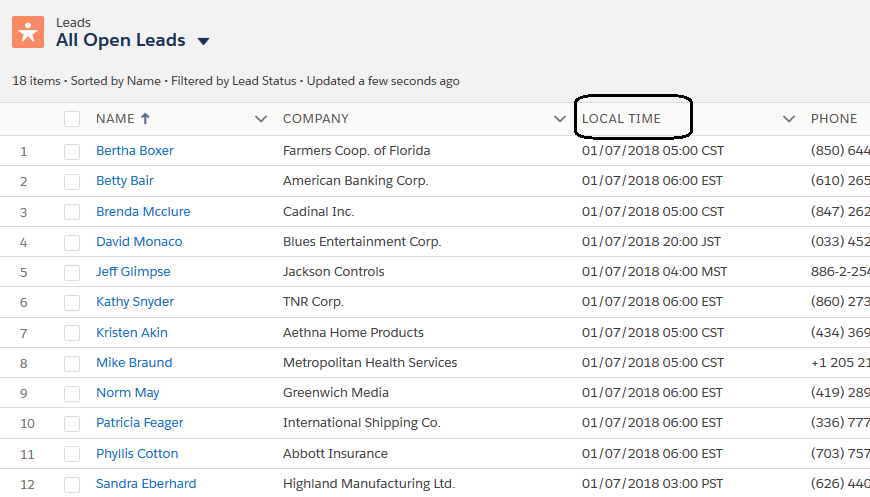
Here’s how to set it up.
Step 1: Add Local Time to the List View
- Open Leads → All Open Leads (or any list view)
- Click the gear icon → Select Fields to Display
- Add Local Time to the visible columns
- Save
Now every rep can instantly see the customer’s local time without clicking into the record.
Step 2: Sort by Local Time
This is where the magic happens.
- Click the Local Time column header
- Sort ascending or descending
Reps can now work through leads in the order that makes the most sense — starting with those currently in business hours.
Step 3: Filter by Local Time (Optional)
Admins can create filtered list views such as:
- “Leads in Business Hours (9 AM – 5 PM)”
- “Leads in Morning Hours (8 AM – 11 AM)”
- “Leads in Afternoon Hours (1 PM – 4 PM)”
This helps SDRs focus on the highest‑probability windows.
3. Building a “Call Now” Dashboard
Once Local Time is available on records, you can build dashboards that guide reps toward the best opportunities.
Dashboard Component Ideas
A. Leads by Local Time Hour
A bar chart showing:
- 8 AM
- 9 AM
- 10 AM
- …
- 5 PM
Reps can visually see when most leads are currently reachable.
B. “Call Now” Table
A report sorted by:
- Local Time
- Lead Status
- Phone availability
Columns to include:
- Lead Name
- Company
- Phone
- Local Time
- Time Zone
- Lead Owner
C. Region‑Based Call Windows
Use filters to show:
- US East
- US Central
- US Mountain
- US Pacific
- EMEA
- APAC
This is especially useful for global SDR teams.
4. Real‑World Examples
Example 1: SDR Team Calling Across the US
An SDR team in Chicago needs to call leads across all four US time zones.
Without Local Time:
- They call PST leads too early
- They call EST leads too late
- They waste time checking time zones manually
With Local Time:
- They sort leads by Local Time
- They start with EST, then CST, then MST, then PST
- Connect rates increase
- Reps make more calls in less time
Example 2: Support Team Managing Global Cases
A support team in Europe handles cases from Asia, North America, and Australia.
Without Local Time:
- They reply when customers are offline
- They miss same‑day resolution windows
With Local Time:
- They prioritize cases where the customer is currently online
- They improve SLA compliance
- Customer satisfaction increases
Example 3: Sales Ops Building a Global Outreach Strategy
Sales Ops wants to optimize outreach across regions.
With Local Time:
- They build dashboards showing peak availability
- They schedule campaigns based on customer local hours
- They reduce after‑hours outreach complaints
5. Try Local Time Free for 30 Days
Prioritizing calls by local time is one of the simplest ways to improve connect rates, boost rep productivity, and create a better customer experience.
With the Local Time app, you can:
- Add a Local Time field to Leads, Contacts, Accounts, and Cases
- Sort and filter list views by local time
- Build dashboards that guide reps toward the best opportunities
- Do it all without Apex, external APIs, or maintenance
Install it from the AppExchange and try it free for 30 days — setup takes less than 5 minutes. Follow the steps described in the installation and setup guide.