

1. The Problem: Reps Calling Prospects at the Wrong Time
Sales teams today work across multiple regions, time zones, and countries. But Salesforce stores time primarily in the org’s default time zone, which means:
- A rep in New York might call a prospect in California at 6 AM
- A support agent in London might follow up with a customer in Sydney after midnight
- SDRs waste time Googling “current time in ___” dozens of times a day
- Managers struggle to build call lists that respect local business hours
The result is predictable:
lower connect rates, frustrated prospects, and inefficient workflows.
Admins know this is a problem, but Salesforce doesn’t provide a native “Local Time” field for Leads, Contacts, Accounts, or Cases. That’s where the challenge begins.
2. Why Salesforce Doesn’t Provide Local Time Out‑of‑the‑Box
Salesforce is incredibly powerful, but time zone handling has some limitations:
No native Local Time field
Salesforce stores:
- User time zone
- Org time zone
- GMT/UTC timestamps
But it does not calculate the local time of a Lead or Contact based on their address or phone number.
Formula fields can’t reliably calculate time zones
Admins often try:
- IF statements based on State/Country
- Hard‑coded offsets (e.g., PST = -8)
- CASE formulas based on area codes
These break quickly because:
- Daylight Savings Time changes
- Area codes overlap
- International numbers are inconsistent
- Formula fields become unmaintainable
External API calls are expensive and slow
Some admins try:
- Google Time Zone API
- WorldTimeAPI
- Custom Apex integrations
But these require:
- API keys
- Development work
- Ongoing maintenance
- Cost per lookup
For most orgs, that’s overkill.
3. The Admin‑Friendly Solution: Add a Local Time Field
The Local Time app solves this problem with a simple, admin‑friendly approach:
- No Apex required
- No external API calls
- No maintenance
- Works instantly for all standard objects
- Automatically adjusts for Daylight Savings Time
You can add Local Time to:
- Leads
- Contacts
- Accounts
- Cases
- Opportunities
Admins can deploy it in minutes.
4. How It Works
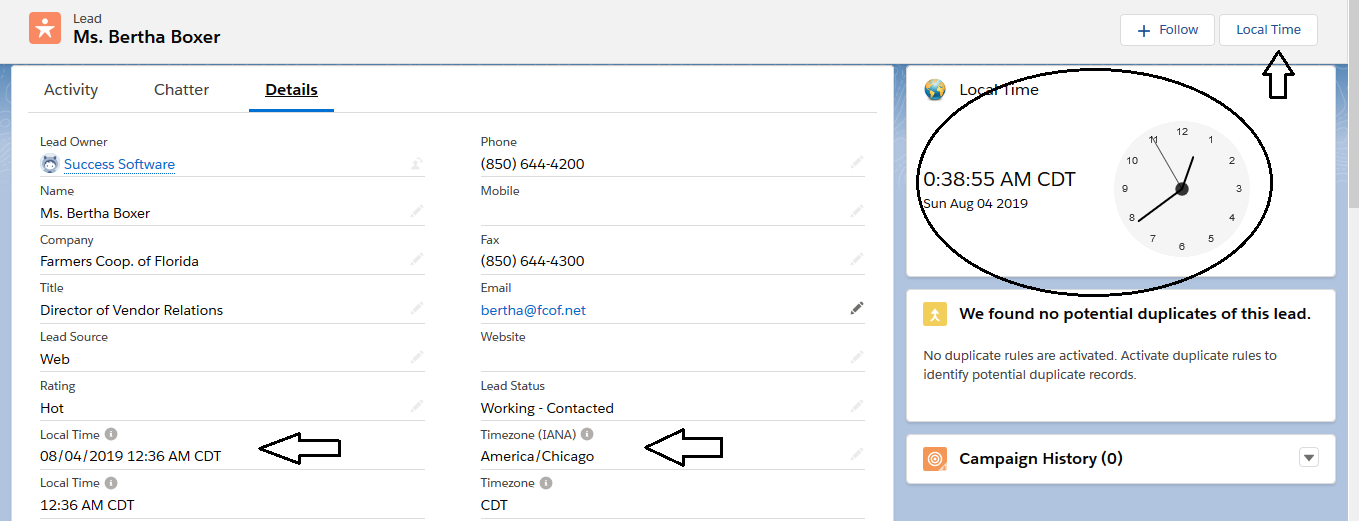
Step 1: Add the Local Time field to your page layout
- Go to Object Manager → Lead (or Contact/Account)
- Open Page Layouts
- Drag the Local Time field into the layout
This instantly displays the correct local time based on the record’s location.
Step 2: Add the Lightning Component
The app includes a clean, modern Lightning component that shows:
- Current local time
- Time zone
- Daylight Savings adjustments
- A world clock view (optional)
Place it anywhere on the page.
Step 3: Add the Local Time column to List Views
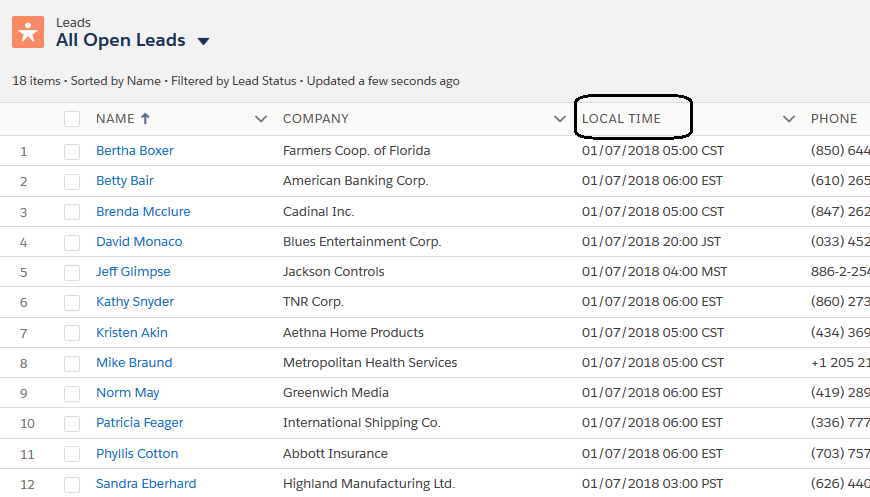
This is where the magic happens.
Admins can:
- Add “Local Time” to Lead list views
- Sort by Local Time
- Filter by region
- Build call queues based on business hours
This alone can increase connect rates dramatically.
5. Bonus: How to Prioritize Call Lists by Local Time
Once Local Time is available, admins can build powerful productivity tools.
A. Create a “Call Now” list view
Filter Leads where:
- Local Time is between 9 AM and 5 PM
- Lead Status = Open
- Phone is not blank
Sort by Local Time ascending.
B. Build a “Best Time to Call” dashboard
Use:
- A report grouped by Local Time hour
- A chart showing call windows
- A table of Leads sorted by Local Time
C. Automate call routing
Use Flow to:
- Assign Leads to reps based on local business hours
- Trigger reminders at the right time
- Prevent after‑hours outreach
6. Try the Local Time App Free for 30 Days
If your sales or support teams work across multiple regions, adding a Local Time field is one of the simplest and highest‑impact improvements you can make.
You can install the Local Time app from the AppExchange and try it free for 30 days.
It takes less than 5 minutes to set up and requires no code, no API keys, and no maintenance.
Free Trial:
Start using the App right away by following the steps described in the installation and setup guide.