

1. Why Time Zones Are a Hidden Challenge in Salesforce
Salesforce is used by organizations that span continents, languages, and working hours. But despite its global reach, Salesforce’s handling of time zones can create unexpected challenges for admins, including:
- Users in different regions seeing different timestamps
- Workflows firing at the wrong local time
- Reps calling customers outside business hours
- Reports showing inconsistent time-based data
- Daylight Savings Time (DST) causing confusion twice a year
These issues often go unnoticed until a team expands internationally or starts working across multiple time zones. Suddenly, what used to be a simple timestamp becomes a source of frustration for admins and end users.
Time zone management isn’t glamorous, but it’s essential for accurate reporting, smooth automation, and a great customer experience.
2. Common Admin Mistakes
Even experienced admins run into pitfalls when dealing with time zones. Here are the most common ones.
Mistake #1: Relying on the User’s Time Zone
Salesforce stores timestamps in GMT and converts them to the user’s time zone. This means:
- A Lead created at 3 PM EST appears as 12 PM PST
- A Case escalated at 10 AM GMT appears as 2 AM PST
This is correct behavior — but it confuses users who expect to see the customer’s local time, not their own.
Mistake #2: Hardcoding Time Zone Offsets
Admins sometimes create formula fields like:
NOW() - (5/24)This breaks because:
- DST changes
- Not all regions follow DST
- Offsets vary by country
- International customers don’t fit neatly into US-centric formulas
Mistake #3: Using Area Codes to Guess Time Zones
Phone numbers are unreliable indicators of location:
- People keep old numbers when they move
- Companies use VoIP numbers
- International formats vary widely
Mistake #4: Using State/Country Fields Without Normalization
If “CA” means California and Canada in your org, time zone logic becomes impossible.
3. Best Practices for Global Orgs
Here are the most reliable strategies for managing time zones in Salesforce.
A. Standardize Address Fields
Use:
- State & Country Picklists
- Validation rules
- Data cleanup tools
This ensures you can reliably determine a customer’s region.
B. Normalize Phone Numbers
Use:
- E.164 formatting
- Phone validation apps
- Flow to clean up formatting
This helps with downstream automation.
C. Store Time Zone as a Field
Instead of calculating time zones on the fly, store:
- Time zone name (e.g., “America/Los_Angeles”)
- UTC offset
- Local time
This makes reporting and automation far easier.
D. Use a Dedicated Time Zone Tool
A purpose-built tool (like the Local Time app) handles:
- DST
- International regions
- Edge cases
- Automatic updates
This removes the burden from admins entirely.
4. Tools That Make Time Zone Management Easier
Salesforce doesn’t provide a native “Local Time” field, but several tools can help.
Local Time App (Recommended)
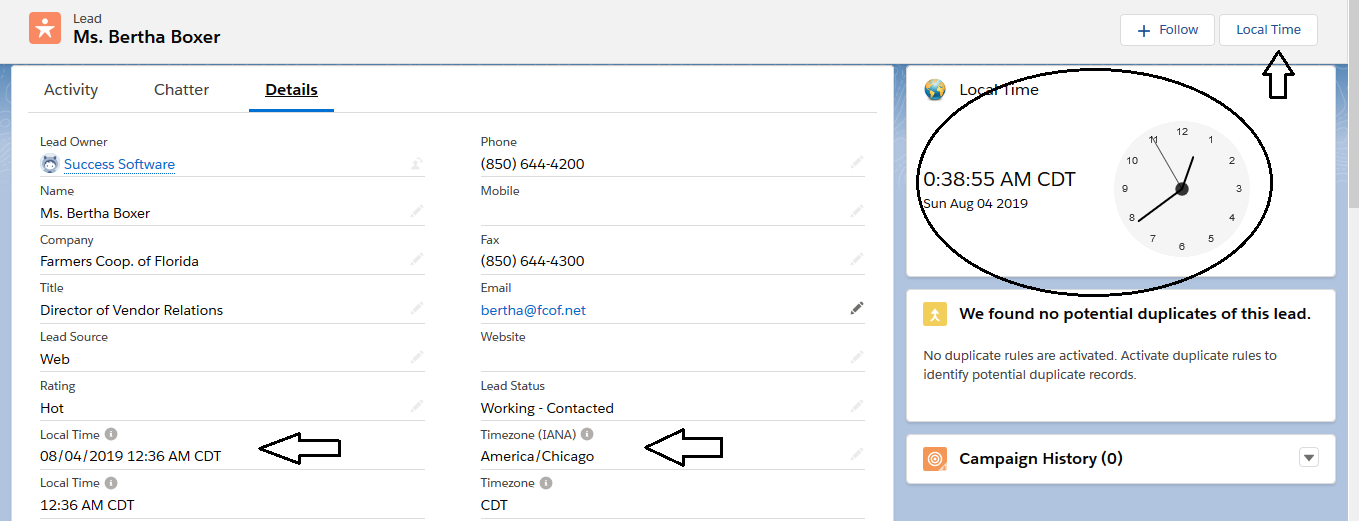
Provides:
- Local Time field for Leads, Contacts, Accounts, Cases
- Lightning component showing current time
- Automatic DST handling
- List view support
- No Apex or external API calls
This is the simplest and most admin-friendly solution.
Dynamic World Clock
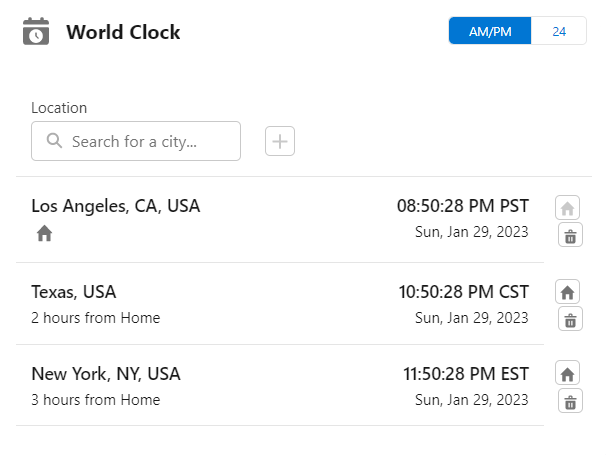
Useful for:
- Global sales teams
- Support teams
- Managers scheduling meetings
Meeting Planner Tools
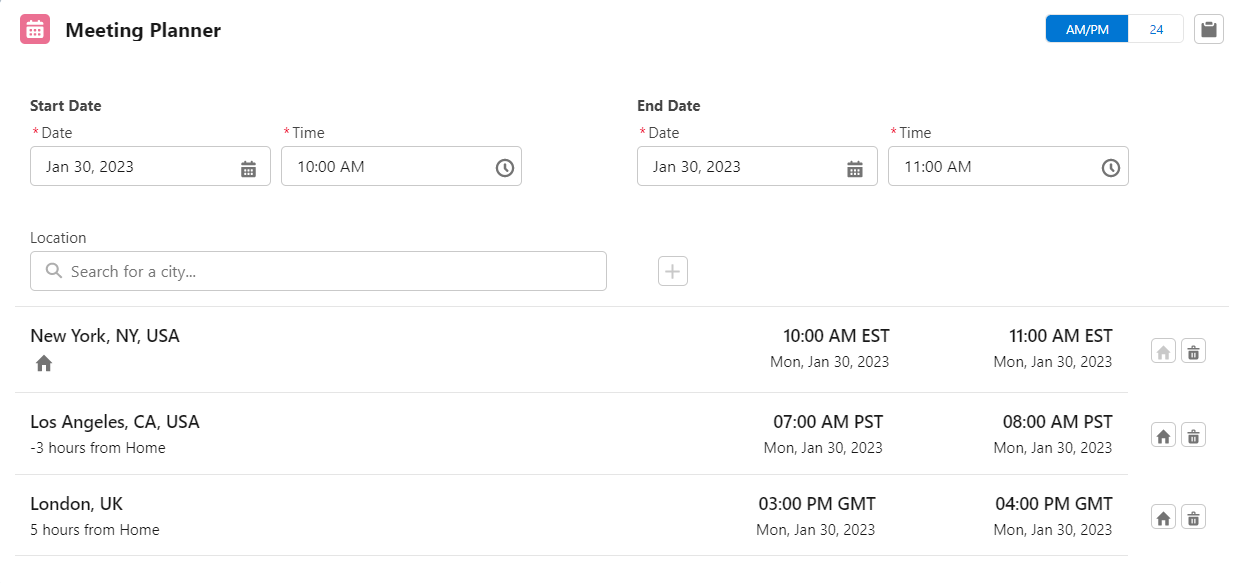
Great for:
- Cross-region collaboration
- Scheduling customer calls
- Avoiding after-hours outreach
5. How to Automate Time Zone Workflows
Once you have reliable time zone data, you can build powerful automations.
A. Flow Example: Send Emails Only During Business Hours
Use Flow to check:
- Local Time field
- Business hours
- Day of week
If the customer is outside business hours, delay the email.
B. Flow Example: Assign Leads Based on Local Time
Route Leads to:
- Morning shift reps
- Afternoon shift reps
- Regional teams
This ensures faster follow-up and better customer experience.
C. Reporting Example: Build a “Global Activity Heatmap”
Group activities by:
- Local hour
- Region
- Team
This helps managers understand when customers are most active.
6. Try the Local Time App
Managing time zones doesn’t have to be complicated. With the right structure and tools, you can eliminate confusion, improve automation accuracy, and give your users a smoother experience.
Start using the App right away by following the steps described in the installation and setup guide.