

1. The Problem: AdIntel Can No Longer Access Google Ads or Google Analytics
One of the common issues customers occasionally encounter when using AdIntel is an OAuth authentication error with Google Ads or Google Analytics.
When this happens, AdIntel may be unable to:
- Synchronize advertising performance data
- Import campaign statistics
- Refresh existing analytics data
- Access your Google Ads account
- Access your Google Analytics property
You may see an error message indicating that the OAuth grant is invalid, expired, revoked, or no longer authorized.
While this can be frustrating, the good news is that the issue is typically easy to resolve and usually requires re-establishing the connection between AdIntel and your Google account.
2. Why This Error Occurs
AdIntel uses Google’s OAuth authorization framework to securely access your Google Ads and Google Analytics data.
When you initially connect your Google account to AdIntel, Google issues an authorization token that allows AdIntel to access the approved data without requiring you to repeatedly sign in.
Over time, however, that authorization can become invalid for several reasons:
A. The OAuth Grant Has Expired
Google may invalidate authorization tokens after a period of inactivity or for security reasons.
B. Access Was Revoked
Someone may have removed AdIntel’s access from the Google account settings.
C. Password or Security Changes
Changes to the Google account, such as password resets or security updates, can occasionally invalidate existing OAuth grants.
D. Google Security Policies
Google continuously updates its security controls and may require applications to re-authenticate periodically.
When any of these situations occur, AdIntel can no longer retrieve data from the Google account until a new OAuth authorization is granted.
3. The Solution: Re-Authenticate the Google Connection
The recommended solution is to remove the existing authorization and establish a new connection.
This process only takes a few minutes and restores AdIntel’s ability to access your Google Ads or Google Analytics account.
Before you begin, make sure you have access to:
- The Google account currently connected to AdIntel
- Salesforce Administrator privileges (or AdIntel configuration access)
4. Step-by-Step Instructions to Fix the OAuth Error
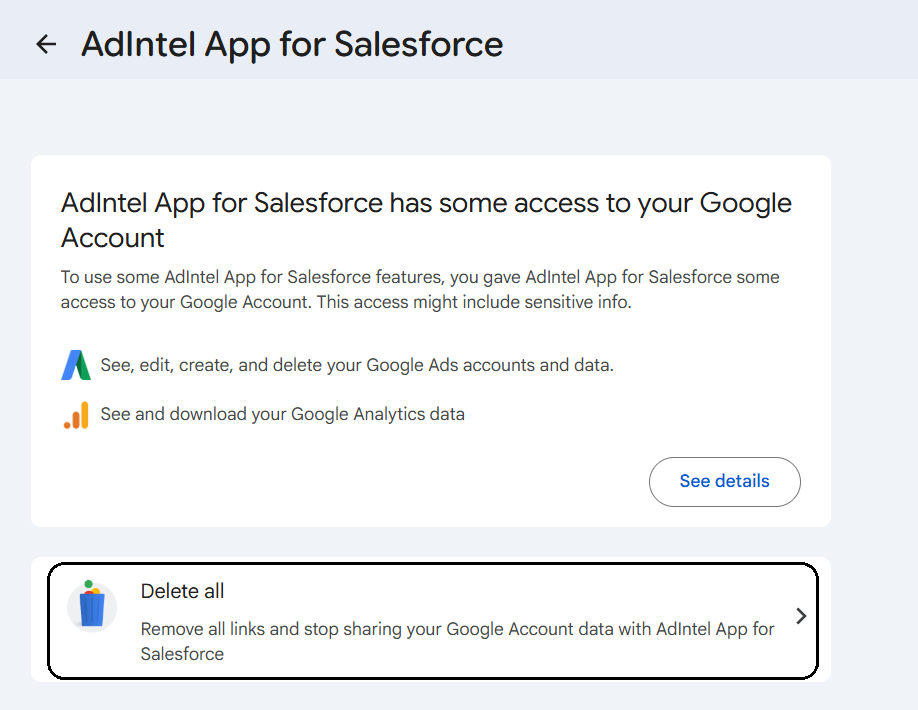
Step 1: Remove AdIntel’s Access from Your Google Account
Sign in to the Google account that is connected to Google Ads or Google Analytics.
Navigate to:
Google Account → Linked Apps → AdIntel App for Salesforce
Select:
Delete Connections
This removes the expired or invalid authorization grant and ensures a clean re-authentication process.
Step 2: Remove the Existing Connection in Salesforce
In Salesforce:
- Open the AdIntel Config tab.
- Select the Access subtab.
- Locate the Google Ads or Google Analytics connection that is experiencing the issue.
- Delete the connection.
- NOTE: Ensure all the connections that are using the same gmail account (used in Step 1) are deleted.

This removes the outdated OAuth credentials stored in Salesforce.
Step 3: Reconnect Your Google Account
After removing both the Google authorization and the Salesforce connection:
- Return to the AdIntel Config tab.
- Create a new Google Ads or Google Analytics connection.
- Sign in using the appropriate Google account.
- Approve the requested permissions.
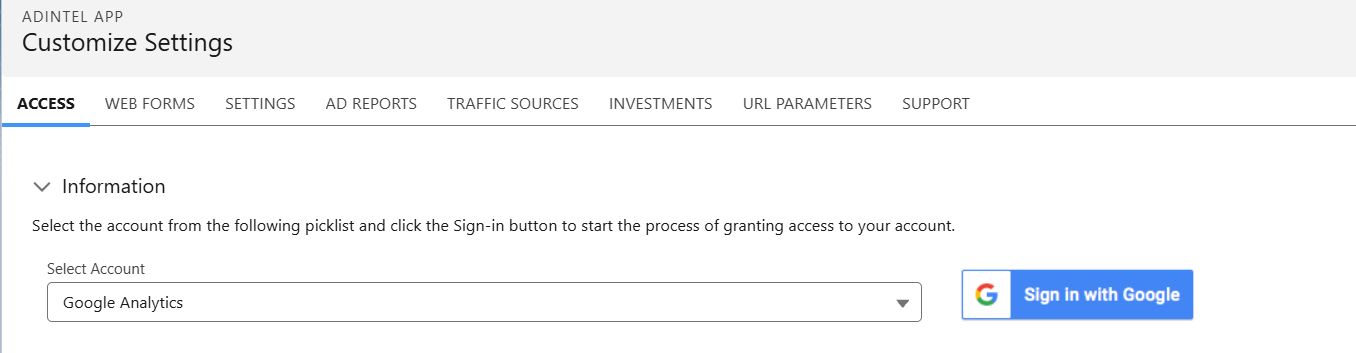
Google will issue a new OAuth authorization grant and AdIntel will regain access to your advertising and analytics data.
5. Additional Troubleshooting Tips
If the issue persists after reconnecting, verify the following:
Verify the Correct Google Account
Many organizations use multiple Google accounts.
Ensure that you are reconnecting the same Google account that owns or has access to:
- The Google Ads account
- The Google Analytics property
Confirm Account Permissions
The Google user authorizing AdIntel must have sufficient permissions within Google Ads or Google Analytics.
Lack of access may prevent AdIntel from retrieving data even after successful authentication.
Check for Recently Changed Security Settings
If your organization recently implemented:
- Multi-factor authentication changes
- Password resets
- Security policy updates
Consider reconnecting all affected integrations.
6. Conclusion: Most OAuth Errors Can Be Fixed in Minutes
OAuth-related errors are usually the result of an expired or revoked Google authorization grant rather than a problem with AdIntel itself.
In most cases, the solution is simply:
- Remove AdIntel access from the Google account.
- Delete the affected connection in Salesforce.
- Re-authorize AdIntel using Google OAuth.
Once the new authorization is established, AdIntel can resume synchronizing Google Ads and Google Analytics data normally.
If you encounter an OAuth error in AdIntel, following the steps above should have you back up and running in just a few minutes.